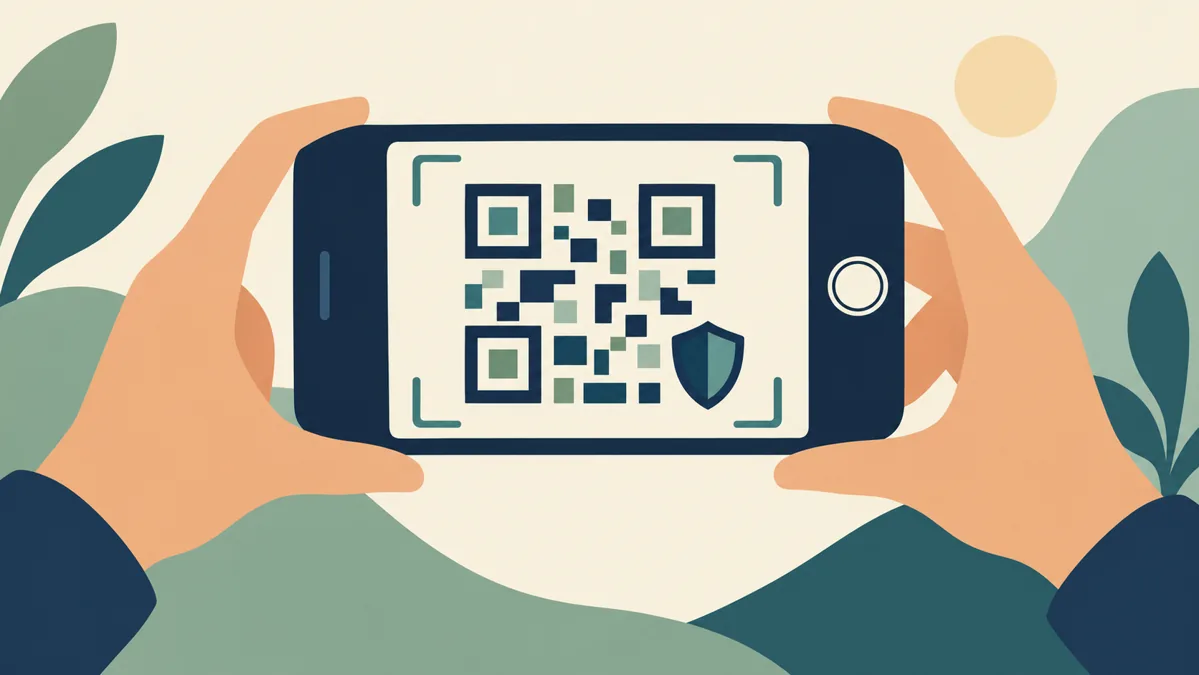
If you need to scan a QR code on a phone that uses Verizon, start with the phone manufacturer’s instructions. Ordinary QR scanning is a device function, not a reason to install an unfamiliar app advertised as a “Verizon QR code scanner.” The method depends on the phone and on what the code is meant to do.
Scan a QR code on iPhone or iPad
Apple documents scanning with the Camera app or Code Scanner. For the Camera method:
- Open Camera and use the rear camera.
- Hold the device so the QR code appears in the viewfinder.
- Wait for the device to recognize the code and show a notification.
- Check what the notification will open before tapping it.
Apple’s support page below gives its current instructions. If no notification appears, check lighting, focus and whether the entire code is visible. Do not install a random scanner just because one attempt did not work.
For an Android phone
Use the support guide for the exact model. Camera and scanning controls differ between manufacturers and software versions. If your camera does not recognize a code, look for the manufacturer’s documented QR or Lens option rather than assuming every Android phone has the same button.
Getting mobile service from Verizon does not identify which camera app or operating-system version your phone uses.
Ordinary links and activation codes are different
A QR code may contain a website address or information for another supported action. If the code is part of a carrier activation process, follow the instructions in that process. Do not assume that opening a code in an ordinary web scanner completes an eSIM activation.
Use a code supplied through the official account or support flow for the line being activated. Do not substitute a reusable activation code found in a public post. For device-specific activation steps, start from Verizon’s own support site and choose the exact phone.
Check the destination before continuing
The FBI warns that scammers can replace legitimate codes with bogus stickers or send codes that lead to fake payment and login pages. A familiar logo beside a QR image is not proof of who made the code.
- Do not scan a randomly placed or visibly altered code.
- Be cautious with codes in unexpected email or text messages.
- If a code asks you to sign in or pay, stop and verify the request through the company’s official app or website.
- Do not supply an account password or verification code merely because a scanned page asks for it.
If a code claims to come from Verizon, you can independently open Verizon’s site or app instead of using the code to establish whether the request is real.
Why a scan may fail
The image may be damaged, partly covered, out of focus or intended for a different application. Ask the legitimate sender for its written instructions or a fresh code through the same trusted process. Repeatedly scanning does not make an unverified destination safe.
Sources and scope
This guide covers Apple’s documented scanning method and QR-scam precautions. It does not certify a specific QR code, claim a universal Android camera path or promise that a scan activates a Verizon line.
Official sources
- Apple: scan a QR code with iPhone or iPad
- FBI: building a digital defense against QR-code scams
- Verizon: official device and activation support