If you see your verizon router blinking white, it is completely normal to wonder what is happening to your home network.
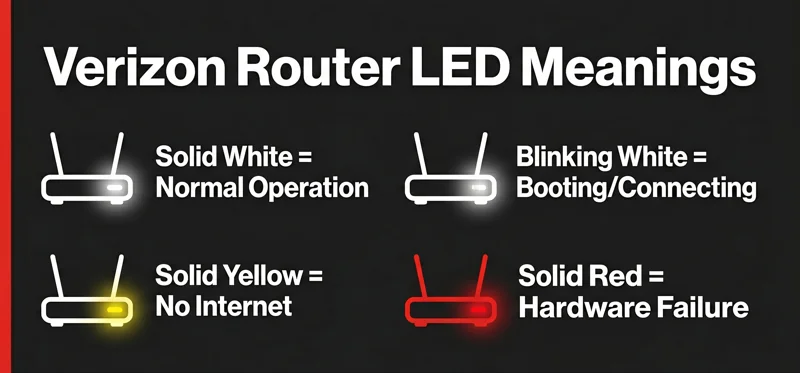
In most cases, a blinking white LED on a modern Verizon Fios router indicates that the device is actively booting up, connecting to the internet, or downloading a firmware update.
However, if the light continues to blink white for more than fifteen minutes, it usually points to a connectivity issue that requires your immediate attention.
Understanding the Verizon Router Blinking White Light
As of 2026, Verizon Fios routers, including the popular CR1000 series and the G3100, use a simplified LED color system.
A solid white light means your router is functioning perfectly and connected to the internet.
Conversely, a blinking white light means the router is trying to establish that connection. During a normal reboot cycle, you will see this blinking phase last for about two to five minutes.
If your router has been unplugged or there was a recent power outage, the device needs this time to handshake with the Optical Network Terminal (ONT).
Patience is key. A blinking white light often means your router is simply updating its firmware to keep your network secure. Give it at least ten minutes before taking action.
Common Reasons for a Continuous Blinking White Light
When the blinking white light does not transition to a solid white light, you are likely facing an interruption in service.
One of the most frequent causes is a loose physical connection. Whether it is the Ethernet cable or the Coaxial cable, any disruption between the ONT and the router will keep it in a constant connecting state.
Another common reason is an ongoing service outage in your local area. Before adjusting your equipment, it is always wise to check the Verizon app for network status updates.
Lastly, an interrupted firmware update can cause the router to get stuck in a boot loop. This happens if the router loses power while installing new software.
Decoding the Verizon Router LED Colors
To accurately diagnose your home network, you need to understand what the other LED colors represent.
| LED Color & Status | Meaning | Required Action |
|---|---|---|
| Solid White | Normal Operation | None. Internet is working. |
| Blinking White | Booting / Connecting | Wait 10-15 minutes. |
| Solid Yellow/Orange | No Internet Connection | Check ONT and cables. |
| Solid Red | Hardware / System Failure | Reboot or contact support. |
Step-by-Step Troubleshooting Guide
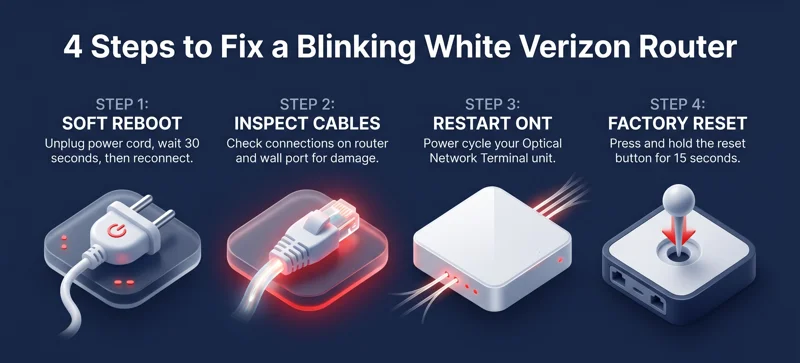
If your router has been blinking white for over fifteen minutes, it is time to perform some basic E-E-A-T approved troubleshooting steps.
We will start with the least intrusive methods and work our way up to more advanced network diagnostics.
Step 1: Perform a Soft Reboot
The simplest and most effective fix for most temporary router glitches is a classic power cycle.
Do not just press a button. Physically unplug the power cord from the back of the Verizon router.
Wait for exactly 60 seconds. This allows the capacitors inside the device to completely drain, clearing any temporary cache errors.
Plug the router back in and wait. The light will blink white as it boots up. Watch closely to see if it turns solid white.
Step 2: Inspect All Physical Cables
A router cannot connect to the internet if the physical pathway is compromised.
Check the WAN port on the back of your router. Ensure the Ethernet cable is securely clicked into place.
Trace that Ethernet cable back to your wall jack or directly to the Optical Network Terminal (ONT). Ensure both ends are snug.
If your setup uses a Coaxial cable, ensure the metal connectors are screwed on tightly. Even a slightly loose coax cable can cause signal degradation.
Never interrupt a firmware update. Unplugging your router while it is actively downloading software can cause permanent damage to the device’s operating system.
Step 3: Check the Verizon Fios ONT Box
The Optical Network Terminal (ONT) is the box that translates the fiber optic signal from the street into a usable internet connection for your router.
Locate your ONT. It is usually installed in a garage, basement, utility closet, or on the outside of your home.
Look at the indicator lights on the ONT. You should see solid green lights for “Power,” “Network,” and “Management.”
If the “Fail” or “Vid” lights are illuminated red on the ONT, the issue is not your router. There is a problem with the fiber line coming into your house.
Step 4: Resetting the ONT
If the router is blinking white but the ONT seems unresponsive, you may need to power cycle the ONT.
Find the power supply box for the ONT. It is usually plugged into a standard wall outlet nearby.
Unplug the power cord. If your ONT has a battery backup unit (BBU), you will also need to temporarily disconnect the battery.
Wait two minutes, reconnect the battery, and plug the power cord back into the wall. Wait for the ONT to boot up completely before checking your router’s status.
Advanced Troubleshooting Methods
If you have checked the cables, rebooted the router, and restarted the ONT, but the light is still blinking white, we need to look deeper.
At this stage, you might be dealing with a software conflict or a misconfigured network setting.
Performing a Factory Reset
A factory reset should be your last resort. This process will erase all your custom settings, including your Wi-Fi network name (SSID) and password.
To factory reset your Verizon router, locate the small, recessed “Reset” button on the back panel.
Using a paperclip or a SIM card ejector tool, press and hold the reset button for exactly 15 seconds while the router is powered on.
The router will turn off, and the lights will cycle. It may take up to ten minutes for the router to fully restore to its default factory state.
Once the reset is complete, the router should display a solid white light. You will then need to set up your Wi-Fi network again using the default credentials printed on the sticker under the router.
Checking for Local Network Outages
Sometimes, the problem is entirely out of your control. Verizon performs routine maintenance on their fiber network, which can cause temporary outages.
Open the My Fios app on your smartphone using your cellular data. Navigate to the support section to view the network status.
You can also log into your Verizon account via a web browser to check for reported outages in your specific ZIP code.
For official support documentation and live chat assistance, you can visit the Official Verizon Router Support page.
Preventative Maintenance for Your Fios Network
To avoid running into the blinking white light issue in the future, it is highly recommended to practice good network maintenance.
Ensuring your router is placed in an optimal location can prevent overheating, which often causes random reboots and connectivity drops.
Keep your router out of direct sunlight, away from heat-generating appliances, and out of enclosed cabinets.
| Maintenance Task | Recommended Frequency | Expected Benefit |
|---|---|---|
| Soft Reboot | Once a month | Clears cache and improves speeds. |
| Dusting the Vents | Every 3 months | Prevents hardware overheating. |
| Cable Inspection | Every 6 months | Ensures stable physical connection. |
| Check for App Updates | Monthly | Keeps management software current. |
When to Request a Replacement Router
Technology ages rapidly. By 2026 standards, if you are using an older generation router, it may struggle to keep up with high-speed fiber demands.
If you have followed all the troubleshooting steps, including a full factory reset, and the router continues to blink white indefinitely, the internal hardware may have failed.
Contact Verizon customer support and request a diagnostic test on your line. They can remotely ping your router to determine if it is completely unresponsive.
If the router is deemed defective, Verizon will typically ship a replacement unit, such as the latest Wi-Fi 7 capable models, within a few business days.
Frequently Asked Questions (FAQs)
How long should a Verizon router blink white during an update?
A standard firmware update usually takes between 5 to 15 minutes. During this time, the router will blink white as it downloads and installs the software. Do not unplug it during this process.
Why did my Verizon router suddenly start blinking white in the middle of the night?
Internet Service Providers usually push critical system updates and security patches during off-peak hours (typically between 2 AM and 4 AM) to minimize disruption.
Does a blinking white light mean my router is broken?
No. A blinking white light simply means the router is trying to connect or boot up. It only indicates a potential problem if it stays blinking for more than 20 minutes without turning solid.
Will pressing the WPS button fix the blinking white light?
No. The WPS (Wi-Fi Protected Setup) button is used to connect new wireless devices to your network easily. It will not resolve a core connectivity or boot issue.
Can a bad Ethernet cable cause the router to keep blinking white?
Yes. If the Ethernet cable connecting the router to the ONT is damaged, bent, or severed, the router cannot establish a connection, keeping it in a continuous blinking state.
Should I reset my ONT if the router won’t connect?
Yes, if rebooting the router does not work, power cycling the ONT is the next logical step, as the ONT supplies the internet signal to the router.
What should I do if the router blinks white and then turns solid red?
A solid red light indicates a failure to connect to the internet or a hardware malfunction. Check all cables, verify there is no local outage, and consider contacting Verizon technical support.
Disclaimer: This article is for informational purposes only. The troubleshooting steps provided are general guidelines. Always consult official Verizon support documentation or contact their customer service for specific issues regarding your hardware and network subscription.