'/%3E%3Cpath%20d='m454%20250-4%204-4-4c-3%203-9%205-9%205l2-5q-9%205-10%203c-1-1%2010-12%2012-26%200-1%203-18-8-13-2%201-4-5%200-7%203-2%2010-1%2011%200q1-2%203-2c2%200%2011%201%2014%206%202%205%202%2014%202%2015q0%2015%208%2027c-1%201-8-2-8-2v3s-7-2-9-4m-12-32c4%2014-9%2031-11%2033%2011%200%2012-10%2015-24l1%201c-2%2011-5%2022-8%2025l7-4%203-22h1l-3%2022%203%203%203-3-1-21h1l1%2021%208%203c-5-8-6-25-6-23h1c2%2012%203%2022%2012%2022-3-3-8-16-7-25q0-12-2-15-6-3-10%202-2%202-5-1c-2-2-1-2-6-4q-7-2-6%205s9-3%2013%205zm7-8q-3%201-1%202%203%200%201-2'/%3E%3C/g%3E%3C/svg%3E)
The tech world is celebrating the news that Microsoft fixes storage hogging Windows 11 folder issues in the latest optional update for 2026. This newly deployed patch finally puts an end to a massive bug that has been silently consuming users’ hard drive space for months.
If you have recently noticed your PC running incredibly low on disk space for no apparent reason, you are certainly not alone. Many users found their SSDs completely maxed out without downloading any new large files.
A frustrating bug in the operating system caused a specific system file to grow exponentially. In some of the most extreme cases, this single file reached hundreds of gigabytes in size, completely paralyzing the computer.
Understanding How Microsoft fixes storage hogging Windows 11 folder Bugs
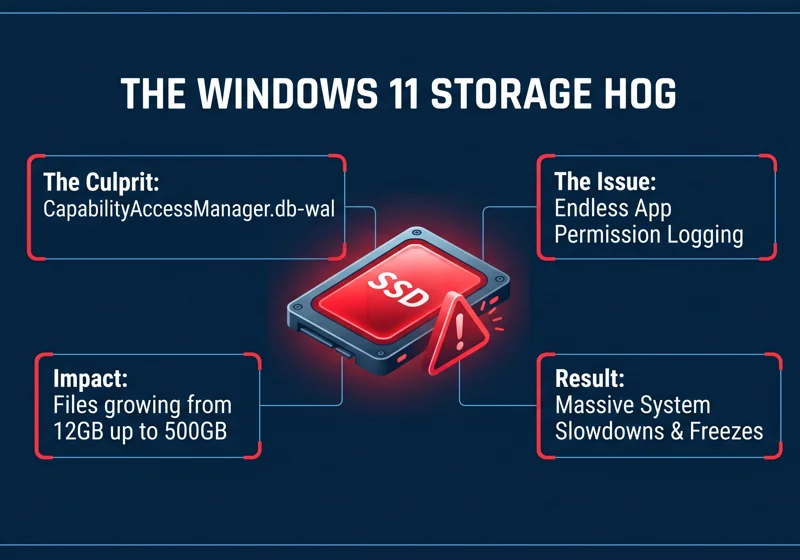
The root cause of this massive storage drain traces directly back to a default system file known as the CapabilityAccessManager.db-wal file. This specific database file is installed on all modern Windows setups by default.
This file is directly related to how the operating system handles app permissions. It manages your privacy controls, such as when an app requests access to your physical location, microphone, or camera.
By repeatedly logging access requests in a loop without compressing older data, the CapabilityAccessManager file swelled from mere megabytes to over 500GB for some unfortunate users.
For most people, identifying what was actually eating their disk space was incredibly difficult. The problematic file is hidden deep within protected system directories that standard users rarely check.
It often required advanced storage analysis tools just to locate the culprit. This is precisely why the fact that Microsoft fixes storage hogging Windows 11 folder problems is such a massive relief for average PC users.
| Reported Issue | File Size Range | System Impact |
|---|---|---|
| Minor Logging Bug | 12GB – 50GB | Noticeable storage loss |
| Moderate Looping | 50GB – 200GB | System slowdowns, warnings |
| Severe Glitch | Up to 500GB | Total drive failure, freezing |
The Technical Side of Why Microsoft fixes storage hogging Windows 11 folder
According to early technical reports, the logging mechanism within the OS essentially failed to overwrite or properly discard old app access requests. It just kept writing new lines of data endlessly.
Every single time a background application asked for a simple permission, the system diligently logged the event. Because modern apps check for permissions constantly, the file size grew at an alarming rate.
If you want to read more about standard file system protocols and official patch notes, you can check the Official Microsoft Windows Release Health dashboard for detailed documentation.
Why We Needed The Microsoft fixes storage hogging Windows 11 folder Update Sooner
Attempting to delete the bloated file manually was not a permanent solution. Because it is a core system component, the operating system would simply recreate it upon reboot and begin hoarding space all over again.
This endless loop is exactly why users desperately needed a structural update to the database logic. The new optional update completely reworks how the OS writes to the db-wal file, optimizing its disk space usage permanently.
| Update Detail | Specification |
|---|---|
| Update Name | Optional June 2026 Update |
| Knowledge Base Number | KB5095093 |
| Target File Fixed | CapabilityAccessManager.db-wal |
Step-by-Step Guide: Microsoft fixes storage hogging Windows 11 folder
Getting your hard drive space back is a straightforward process. Because the patch is currently part of the optional June 2026 release, it will not install automatically unless you specifically tell it to.
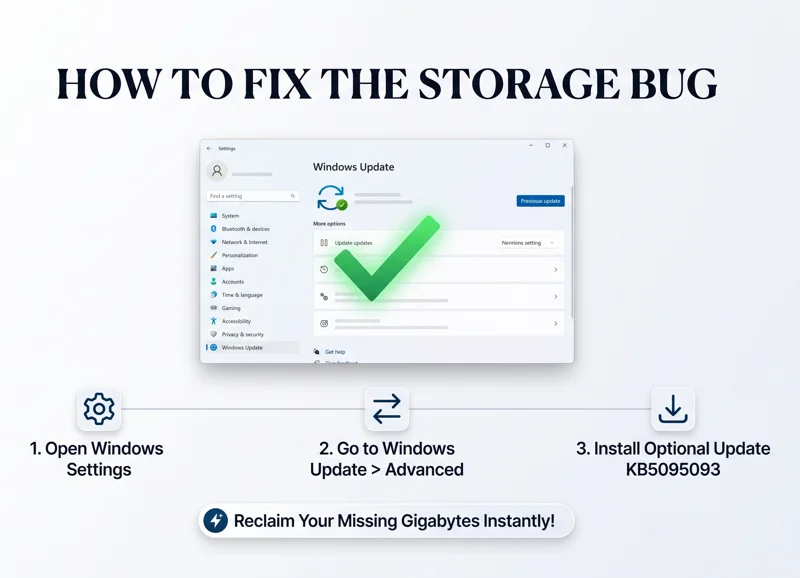
First, open your primary Settings menu. You can do this by pressing the Start button and clicking the gear icon. Navigate directly to the “Windows Update” section located on the left sidebar.
Next, click on the “Advanced options” tab. Here, you will find a section dedicated entirely to optional updates that are available for your specific machine.
Installing the optional KB5095093 update immediately halts the aggressive logging loop, preventing the database file from endlessly consuming your free space.
Under the Optional Updates section, you should see the patch listed. Select it, click download and install, and then allow your computer to restart to apply the necessary changes.
| Step Number | Action Required | Expected Result |
|---|---|---|
| Step 1 | Navigate to Windows Update settings | Access to the update dashboard |
| Step 2 | Click Advanced Options > Optional Updates | Locate the KB5095093 patch |
| Step 3 | Download, Install, and Restart | Reclaim lost storage space instantly |
Frequently Asked Questions: Microsoft fixes storage hogging Windows 11 folder
What is the main issue being patched in the June 2026 update?
The update addresses a massive bug where Microsoft fixes storage hogging Windows 11 folder problems, specifically targeting a file that was expanding up to 500GB due to a logging error.
Which specific file was causing the storage drain?
The culprit was the CapabilityAccessManager.db-wal file, which is a core component that handles app permissions and privacy controls on your computer.
How much space were users losing to this bug?
Depending on the severity of the loop, users reported losing anywhere from 12GB up to a staggering 500GB of storage space.
Will this update download automatically?
No, it is currently listed as an optional update. You must manually go into your Advanced Options in the Windows Update menu to trigger the download.
What is the official name of the patch I need to look for?
You need to look for the optional June 2026 update, which is officially labeled as KB5095093 in the update catalog.
Can I just delete the large file manually?
You can, but it is not a permanent fix. The operating system will automatically recreate the file and start filling it up again until you install the official patch.
Is my personal data safe when applying this fix?
Yes, your personal data is completely safe. When Microsoft fixes storage hogging Windows 11 folder issues, it only optimizes system-level logging files, leaving your personal files untouched.
Disclaimer: This article is for informational purposes only. Modifying system files or installing beta/optional updates should be done carefully, and it is always recommended to back up your personal data before performing system updates.