'/%3E%3Cpath%20d='m454%20250-4%204-4-4c-3%203-9%205-9%205l2-5q-9%205-10%203c-1-1%2010-12%2012-26%200-1%203-18-8-13-2%201-4-5%200-7%203-2%2010-1%2011%200q1-2%203-2c2%200%2011%201%2014%206%202%205%202%2014%202%2015q0%2015%208%2027c-1%201-8-2-8-2v3s-7-2-9-4m-12-32c4%2014-9%2031-11%2033%2011%200%2012-10%2015-24l1%201c-2%2011-5%2022-8%2025l7-4%203-22h1l-3%2022%203%203%203-3-1-21h1l1%2021%208%203c-5-8-6-25-6-23h1c2%2012%203%2022%2012%2022-3-3-8-16-7-25q0-12-2-15-6-3-10%202-2%202-5-1c-2-2-1-2-6-4q-7-2-6%205s9-3%2013%205zm7-8q-3%201-1%202%203%200%201-2'/%3E%3C/g%3E%3C/svg%3E)
Welcome to the ultimate how to use android auto on tablet guide for 2026. If you have an outdated Android or Amazon Fire tablet sitting in a drawer, you can breathe new life into it by turning it into a smart dashboard for your car.
Old tablets are excellent for binge-watching, but repurposing an old Android tablet for a car is the smartest DIY project you can do today. By using a single app, you can create a fully functional smart screen without spending hundreds of dollars on a factory upgrade.
This project eliminates the need to buy an expensive built-in dashboard. Instead, you can navigate with Google Maps, listen to Spotify, and check your Google Calendar right from your old device.
Why You Need This how to use android auto on tablet guide Today
Setting up a DIY Android Auto display is incredibly cost-effective. All you really need is the Headunit Revived app, which costs just a few dollars on the Google Play Store or Amazon Appstore. It works similarly to native car systems.
Many drivers are looking for a cheap car infotainment upgrade, and this how to use android auto on tablet guide will walk you through the exact steps needed to achieve that. The application acts as a direct receiver, securely linking with your smartphone.
“Upgrading your car’s technology doesn’t have to break the bank. A repurposed tablet offers the exact same smart features for a fraction of the cost.”
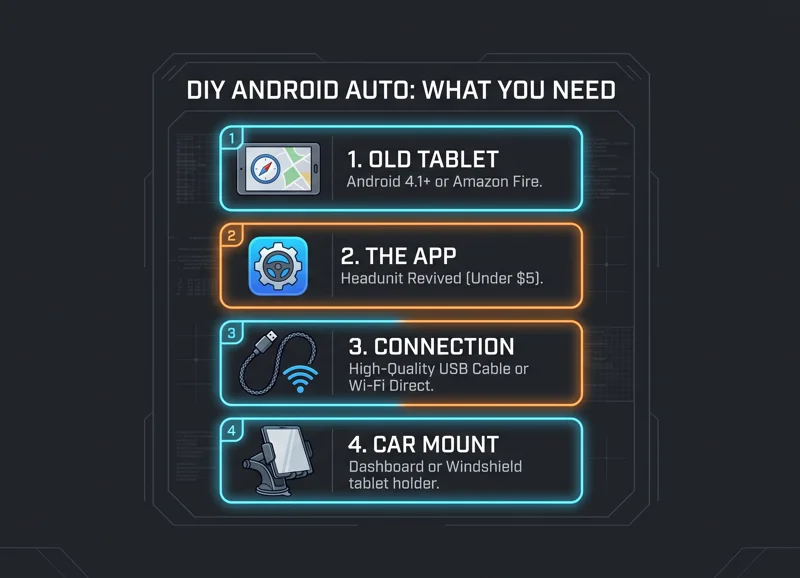
To begin, ensure your tablet runs at least Android 4.1. You will need to download the necessary receiver application. You can easily find Headunit Revived on the Google Play Store for a small one-time fee.
| Requirement | Details / Estimated Cost |
|---|---|
| Old Tablet | Android 4.1+ or Amazon Fire (Free/Repurposed) |
| Headunit Revived App | Under $5 (One-time fee) |
| Connection Method | USB Data Cable or Wi-Fi Direct |
| Car Mount | Dashboard or Windshield mount (Varies) |
Initial Headunit Revived App Setup
Before connecting your phone, you must properly configure the receiver tablet. Open the app and grant the necessary permissions for location and audio recording.
Select the “Start” option on the Quick Setup Wizard. From there, select your tablet’s screen size and set the orientation to Landscape, which is highly recommended for optimal Google Maps formatting.
This how to use android auto on tablet guide emphasizes customization. You can dive into the settings to adjust UI scaling, screen resolution, and even configure automatic launch parameters based on your driving habits.
Step-by-Step how to use android auto on tablet guide: Wired Setup
For the most stable connection, a wired setup is recommended. Plug a high-quality USB data cable into both your smartphone and the tablet.
On your smartphone, pull down the notification panel and select the USB options. Change the setting to “Transferring files/Android Auto” to ensure data flows correctly between the devices.
Next, launch the receiver app on your tablet and tap on the USB option. When prompted on your phone, allow access and press continue. Your DIY car screen will now boot up the automotive interface.
Wireless Setup in Our how to use android auto on tablet guide
If you prefer a cleaner look without cables, a wireless Android Auto alternative is entirely possible. The developer recommends using Wi-Fi Direct (P2P) rather than an active internet hotspot.
In the tablet’s app settings, navigate to Wireless Helper and choose Wi-Fi Direct. Note the network name provided on the screen. Then, use the Wi-Fi Helper app on your smartphone to connect to this specific network name.
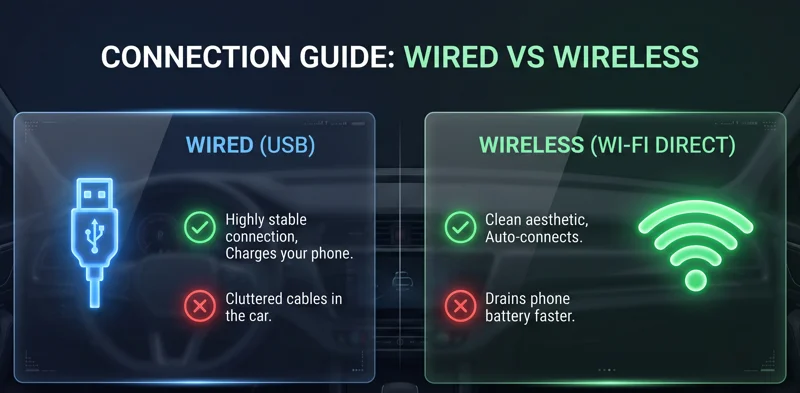
| Connection Type | Pros | Cons |
|---|---|---|
| Wired (USB) | Highly stable, charges phone, easy setup | Cluttered cables, requires good data cord |
| Wireless (Wi-Fi) | Clean aesthetic, auto-connects wirelessly | Drains phone battery faster, minor latency |
“Going wireless provides a premium feel to your older car, mimicking the high-end infotainment systems found in modern luxury vehicles.”
Following this how to use android auto on tablet guide ensures that your maps, music, and communications are fully optimized for driving. Make sure you mount your new DIY screen securely on your dashboard or windshield using a heavy-duty car mount to ensure driving safety.
Frequently Asked Questions
What is the main purpose of this how to use android auto on tablet guide?
It teaches you how to repurpose an old tablet into a smart car dashboard using a specific receiver application, saving you money on expensive car upgrades.
Does this how to use android auto on tablet guide work with Amazon Fire tablets?
Yes! You can download the required receiver application directly from the Amazon Appstore for a small fee and use your Fire device.
Is the application required for this project free?
The application costs under $5 on official app stores, though tech-savvy users can compile it for free from the developer’s GitHub page.
Do I need an active internet connection on the tablet?
No. The tablet acts strictly as a display monitor. All data and internet connections are processed and provided by your connected smartphone.
What happens if the USB connection fails?
A failed USB connection is usually due to a power-only cable. Switch to a high-quality data transfer USB cable to resolve the issue.
Can I use portrait mode instead of landscape?
While possible, landscape mode is highly recommended because portrait orientation can cause formatting bugs within Google Maps.
Will this setup drain my tablet’s battery?
Since the screen is always on, battery drain is significant. It is recommended to keep the tablet plugged into a reliable 12V car charger while driving.
Disclaimer: This article is for informational purposes only. Ensure any DIY dashboard screens are securely mounted and do not obstruct your view of the road. Always prioritize safe driving practices and comply with local laws regarding screens in vehicles.