Activate a T-Mobile eSIM through the official setup flow for your device and account. Do not rely on a universal “free activation code” or a QR image copied from an unrelated website. An eSIM setup method is not the same as a promotion for free service.
What is an eSIM?
T-Mobile describes an eSIM as a digital SIM that you download over Wi-Fi instead of inserting a physical SIM card. The device still needs compatible hardware and an eligible, active service setup.
Before starting, check the instructions for the exact model and whether you are activating new service, moving an existing line or opening a prepaid account. Those are not always the same process.
Do you need a free T-Mobile activation code?
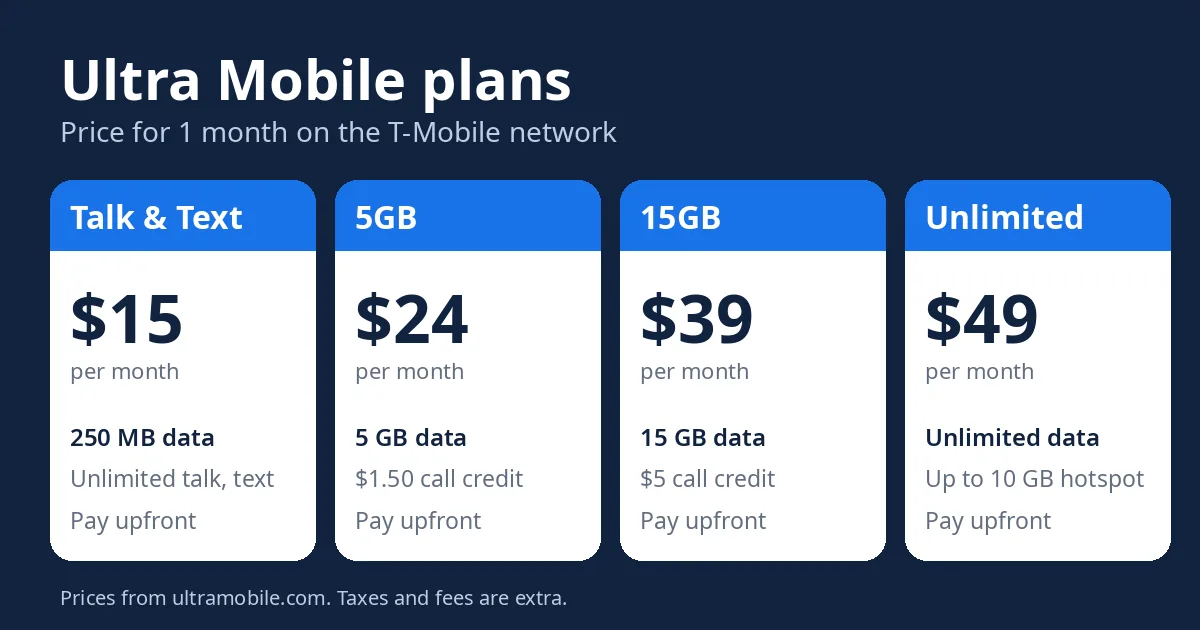
The current support instructions use account and device setup steps, not a single public code that activates every phone. A QR code, when needed, is part of the authorized activation flow. Do not assume a code found online applies to your line or removes plan costs or activation charges.
Before moving an existing line
- Connect to Wi-Fi when the device’s setup instructions require it.
- Keep the old device available if the transfer method uses it.
- For an authorized SIM move, follow T-Mobile’s instructions about SIM Protection. Its support page says that protection must be disabled before an upgrade or transfer to a new device, or an error can occur.
- Have the requested device identifiers available privately. T-Mobile’s account flow can ask for the IMEI and EID. Do not post them in public comments.
Set up an eSIM on an iPhone
T-Mobile says an iPhone may offer activation or transfer during initial setup. If the phone is already set up and connected to Wi-Fi, it can prompt you when the T-Mobile cellular plan is ready to install. If you skipped the prompt, the carrier directs you to Settings, then Cellular, to activate the eSIM.
Use the device-specific tutorial if the labels or transfer choices differ. Changing between Apple and Android, or not having the old device, can require another path.
Set up an eSIM on Android
The exact menu depends on the manufacturer. T-Mobile currently lists these examples:
- Samsung: Settings, Connections, SIM manager, then Add eSIM.
- Google: Settings, Network & Internet, SIMs, then Add SIM. Follow the offered setup or transfer flow.
- Motorola: Settings, Network & Internet, SIMs & mobile network, then Download new SIM and Set up an eSIM.
If a supported device asks for a QR code and you do not have one, T-Mobile’s guidance for several device families says to contact support so it can email the code. Do not replace it with a generic image from search results.
Use T-Life when the carrier directs you to account activation
For its Other devices flow, T-Mobile says to open T-Life while connected to the T-Mobile network, choose Account and the line, then SIM transfer or activation. The flow asks for the target device’s IMEI, the eSIM choice and EID, followed by a review and activation confirmation. An interactive text confirmation may be required.
Follow the instructions presented for your account. Do not approve a SIM-change request that you did not start.
New prepaid service and setup problems
T-Mobile directs new prepaid-account activation to its Prepaid eSIM app. Use the current official entry point for that account type rather than assuming the existing-line steps apply.
If activation fails, confirm device compatibility, Wi-Fi access and the account’s SIM Protection state through the official support process. Avoid deleting a working eSIM or resetting the phone as a first experiment. Ask support to check the pending activation and the correct device identifiers.
Sources and scope
These are documented setup routes, not a guarantee that every phone or account supports eSIM transfer. Follow the current model-specific tutorial and review any service costs before accepting an order or plan change.