'/%3E%3Cpath%20d='m454%20250-4%204-4-4c-3%203-9%205-9%205l2-5q-9%205-10%203c-1-1%2010-12%2012-26%200-1%203-18-8-13-2%201-4-5%200-7%203-2%2010-1%2011%200q1-2%203-2c2%200%2011%201%2014%206%202%205%202%2014%202%2015q0%2015%208%2027c-1%201-8-2-8-2v3s-7-2-9-4m-12-32c4%2014-9%2031-11%2033%2011%200%2012-10%2015-24l1%201c-2%2011-5%2022-8%2025l7-4%203-22h1l-3%2022%203%203%203-3-1-21h1l1%2021%208%203c-5-8-6-25-6-23h1c2%2012%203%2022%2012%2022-3-3-8-16-7-25q0-12-2-15-6-3-10%202-2%202-5-1c-2-2-1-2-6-4q-7-2-6%205s9-3%2013%205zm7-8q-3%201-1%202%203%200%201-2'/%3E%3C/g%3E%3C/svg%3E)
The latest update to the Android 17 QPR2 Status bar gives users unprecedented control over their smartphone’s display. For years, mobile power users have complained about cluttered screens filled with unnecessary icons. Now, in 2026, Google is finally addressing this issue head-on. The highly anticipated Android 17 QPR2 Beta 4 brings a dedicated customization menu that allows you to hide notification icons, manage system indicators, and streamline your digital experience.
How to Access the Android 17 QPR2 Status bar Settings
Navigating to the new Android 17 QPR2 Status bar menu is incredibly straightforward. Google has strategically placed these options where they make the most intuitive sense within the user interface. To access the customization hub, simply open your device’s Settings application. From there, scroll down and tap on System. You will find the new menu located precisely under the System management menu, nestled comfortably alongside the standard Date & time and Users settings.
Additionally, Google has created a helpful shortcut. If you are already adjusting your app alerts in Settings > Notifications, you will see a direct link leading right back to the Android 17 QPR2 Status bar configurations. This dual-access approach ensures that users can easily find and modify their top-screen preferences without getting lost in endless submenus.
“The introduction of a dedicated status management hub in Android 17 QPR2 Beta 4 represents a massive leap forward for digital minimalism.”
| Notification Setting | System Behavior |
|---|---|
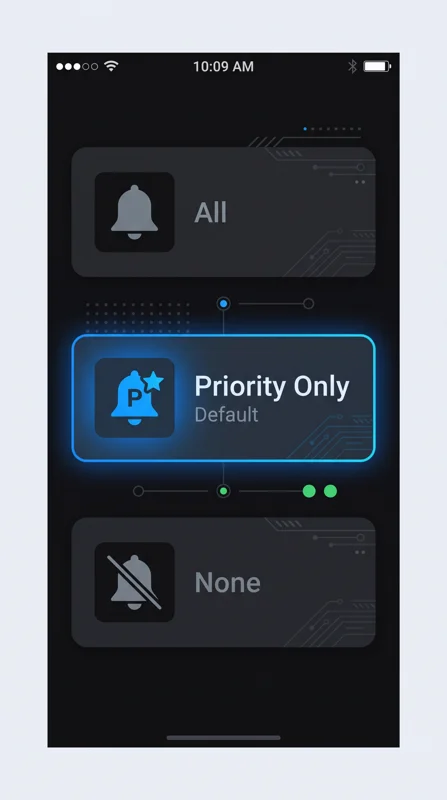
| All | Show all notification icons, maximizing visibility for every app alert. |
| Priority only (Default) | Show priority notifications only, filtering out low-tier or silent alerts. |
| None | Show no notification icons, creating a completely distraction-free screen. |
Customizing Notification Icons in the Android 17 QPR2 Status bar
One of the primary reasons users seek out the new Android 17 QPR2 Status bar settings is to reduce visual noise. The new menu offers a dedicated section specifically for handling application alerts. By default, the system is set to “Priority only,” which is a smart choice for maintaining focus. However, you have complete freedom to adjust this behavior based on your personal workflow. For more details on Android system builds, check the Android Open Source Project.
Managing System Icons with the Android 17 QPR2 Status bar
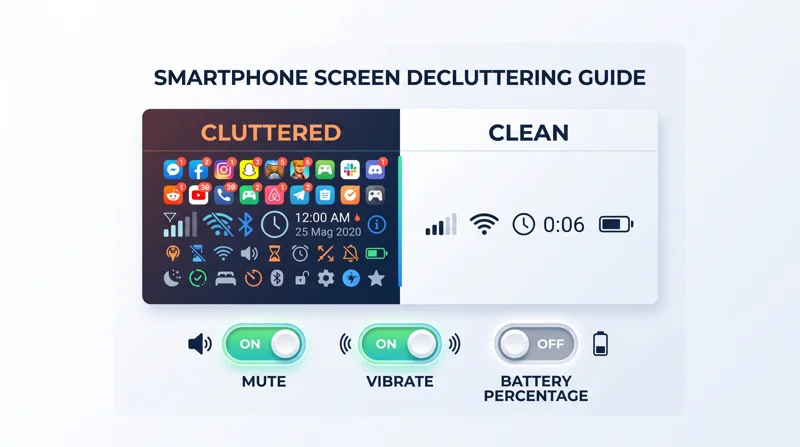
Beyond just app alerts, the Android 17 QPR2 Status bar allows you to clean up native system indicators. The “System icons” section provides three distinct toggle options. While preferences for the battery and vibrate indicators already existed scattered throughout other menus, Google has smartly consolidated them here for ease of use.
You can now choose exactly when to show mute and vibrate indicators, ensuring you only see the data you actually care about. If you prefer to hide the battery percentage to reduce charging anxiety, the Android 17 QPR2 Status bar makes it a simple one-tap process to remove the numbers from your sightline.
| System Icon Toggle | Display Function |
|---|---|
| Mute | Show when the device is completely muted. |
| Vibrate | Show when the device is set to vibrate mode. |
| Battery percentage | Show the exact battery level as a numerical percentage. |
“Consolidating system toggles into a single visual management menu is exactly the kind of user-first design modern smartphones need.”
Frequently Asked Questions About the Android 17 QPR2 Status bar
How do I access the Android 17 QPR2 Status bar menu?
You can find it by navigating to Settings > System > System management. Alternatively, there is a quick link available inside the Settings > Notifications menu.
Does the Android 17 QPR2 Status bar allow me to hide notification icons completely?
Yes. Under the notification settings, you can select “None” to completely hide all notification icons from the top of your screen.
What is the default notification setting in the Android 17 QPR2 Status bar?
The default setting is “Priority only,” meaning the system will only display icons for alerts it deems highly important or time-sensitive.
Can I remove the battery percentage using the Android 17 QPR2 Status bar?
Yes, the system icons menu includes a dedicated toggle to hide or show the battery percentage based on your visual preference.
Are mute and vibrate indicators managed in the Android 17 QPR2 Status bar?
Yes. Beta 4 consolidates the toggles to show when the device is muted or set to vibrate directly into this new customization menu.
Is the Android 17 QPR2 Status bar available on older Android versions?
No, this specific centralized customization menu was introduced in the Android 17 QPR2 Beta 4 build and requires this software version or newer.
Will modifying the Android 17 QPR2 Status bar affect my pop-up alerts?
No. Changing these settings only affects the static icons displayed at the top of your screen; it does not disable heads-up pop-ups or lock screen notifications.
Disclaimer: This article is for informational purposes only. Features and settings described are based on beta software and may change prior to the final public release.